 I’m a huge fan of smart lighting. I adopted smart bulbs way back before they were popular and haven’t looked back since. The major complaint about smart bulbs has been that in many cases you need a hub to get the connectivity with with your Wi-Fi system.
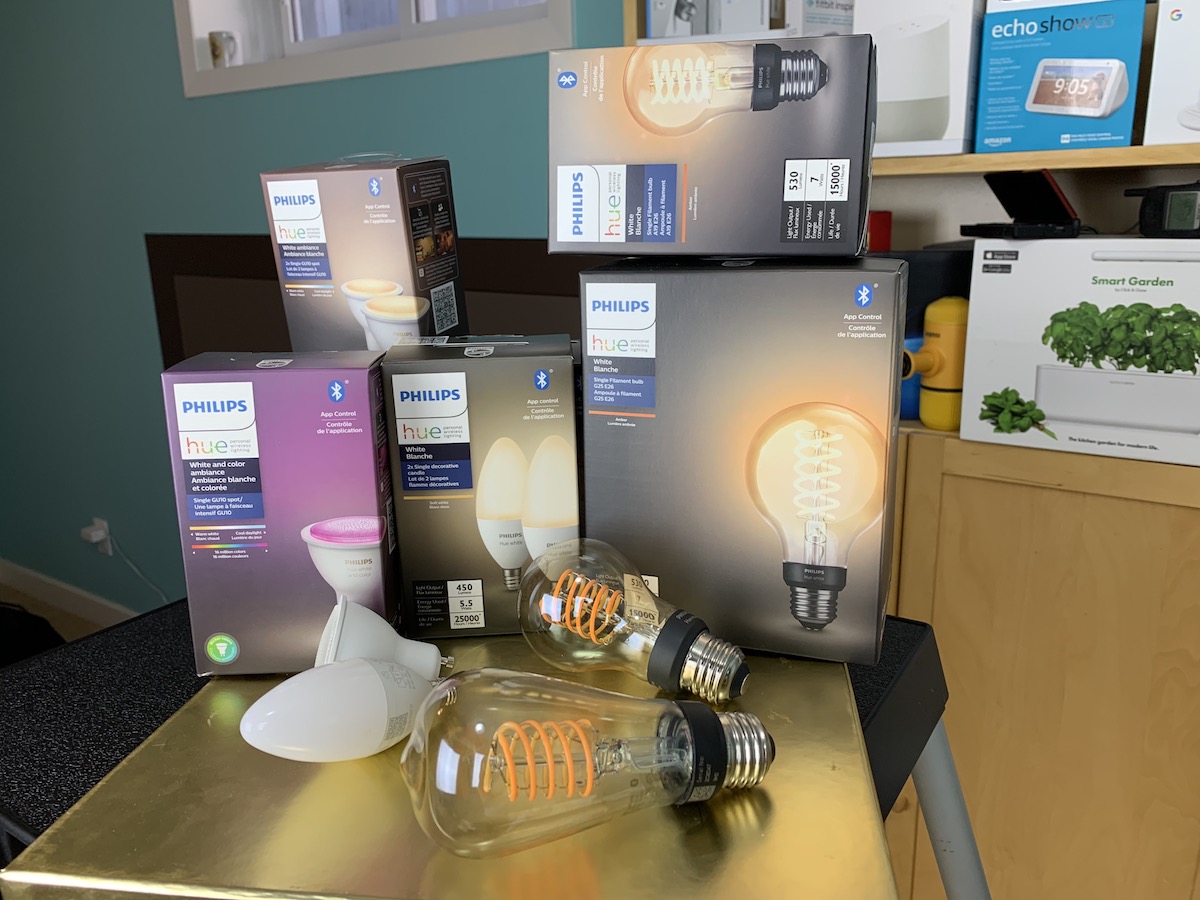
But now things have changed. Philips Hue, makers of a huge line of smart lighting, have just introduced Bluetooth smart bulbs including chandelier bulbs, halogen replacements, and smart filament or Edison bulbs. I had a chance to play with a few of them in my home for a week or so and I’ll tell you what I learned about them, including what using the Bluetooth bulbs means for your existing Hue Wi-Fi bulbs, how they work, how to control them and if they operate differently than the Wi-Fi Hue Bulbs.
Why choose a Hue Bluetooth bulb over a regular Hue bulb?
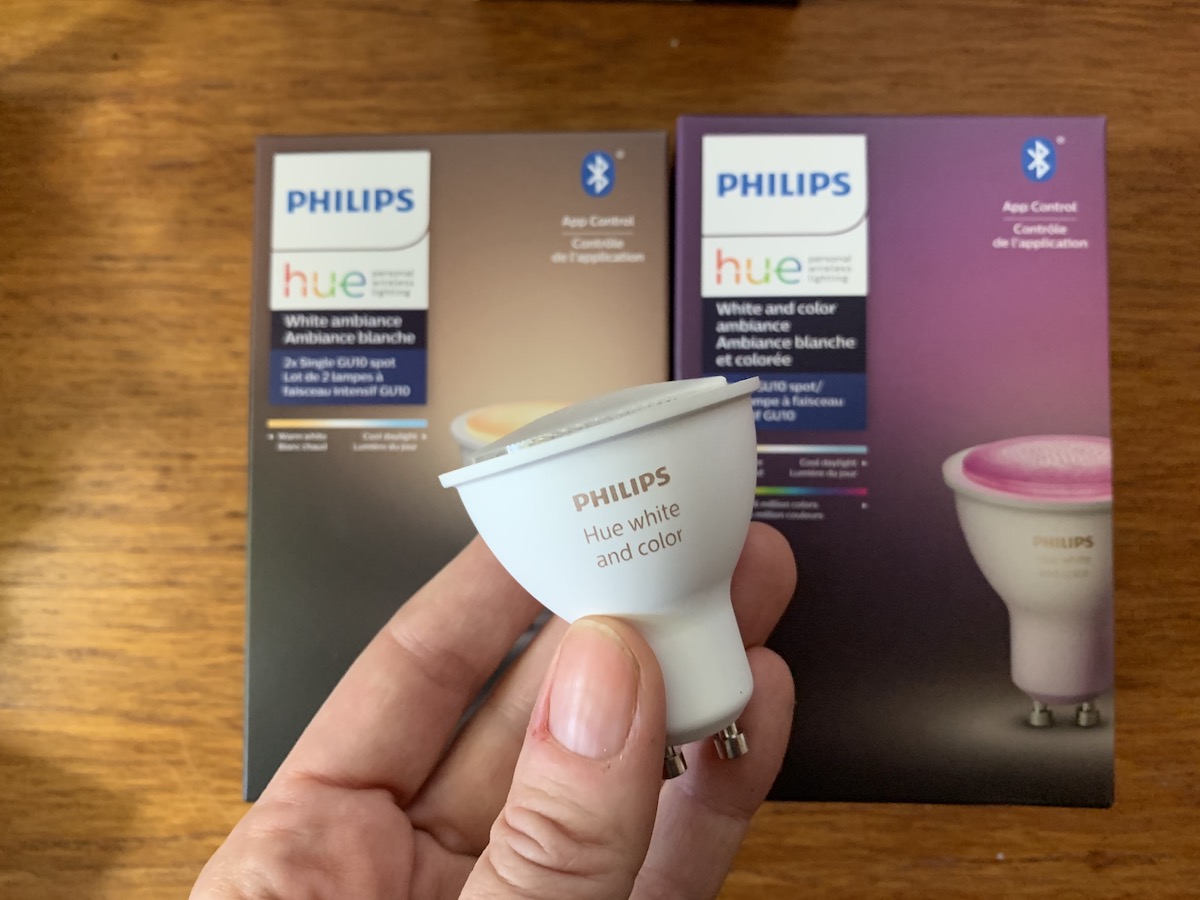 You might be wondering what the advantages are of choosing a Philips Hue Bluetooth bulb over a traditional Hue bulb. For starters, you’ll save money. These are an ideal gateway to exploring a smart home and smart lighting because you don’t need the Hue Bridge (which costs about $79 or available as part of a regular Philips Hue multi-bulb starter kit).
Getting a Hue Bluetooth light means some savings up front, and that can let you see the advantages of smart lighting and if you want to expand the ecosystem. If you do, you’ll still want the Bridge, as it brings extra functionality. More on that in a moment.
This new collection of Philips Hue smart LED bulbs can be controlled via Bluetooth using your smartphone, tablet, or other mobile device, as well as by selected smart home assistants including Google Home and Alexa.
It’s worth pointing out these are designed to have less functionality than regular Hue lights. That’s not a bad thing and it shouldn’t be a criticism. These lights have limited functionality so they can be offered to consumers who aren’t sure if they want to spend on a full starter kit, or outfitting the whole home—yet.
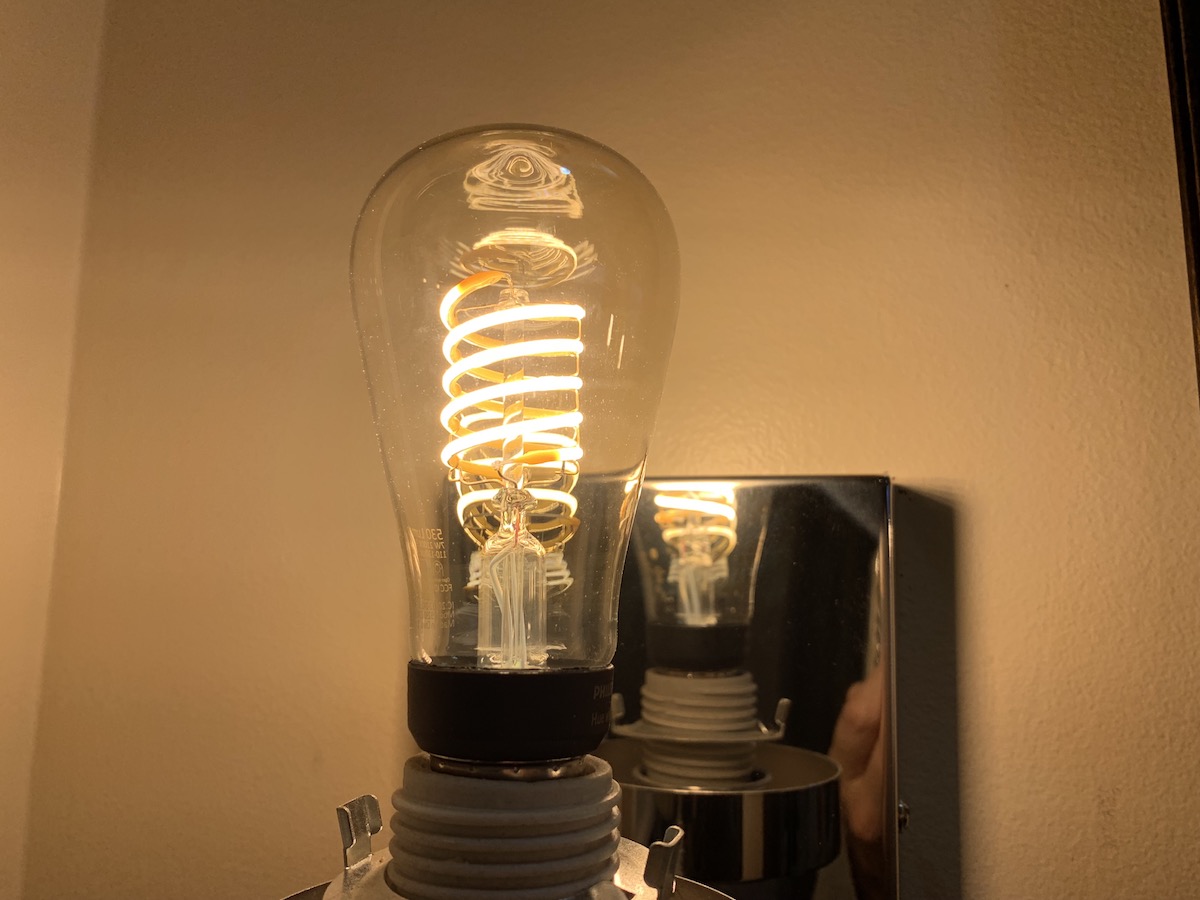 There’s a few light options in this new Bluetooth range: There’s the Edison or Filament bulbs, there’s White Ambiance, which lets you have warm or cool white light, there’s halogen replacements, as well as specialty options for a chandelier. There’s also Colour and White Ambiance bulbs that let you create different colour stories and scenes.
Setting up Philips Hue Bluetooth Bulbs: Special app needed
Thankfully there’s no major changes for those of you familiar with setting up Hue bulbs. And for those of you new to the ecosystem, know it’s an easy set up.
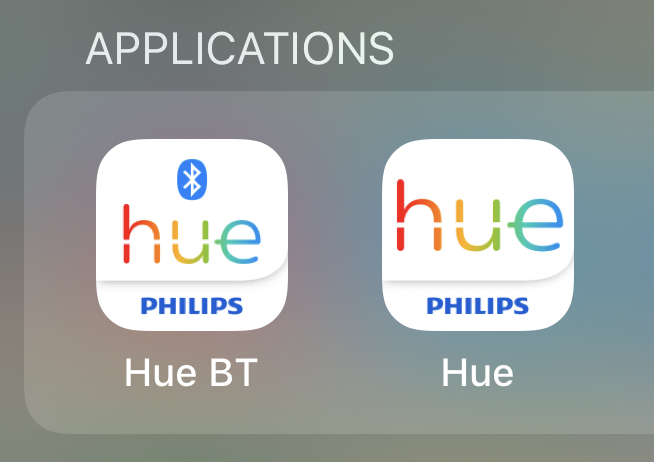
If this is your first Hue bulb, you’ll first download the free Philips Hue Bluetooth app and get an account set up, and yes, it’s important to note that if this is your first Hue bulb, you do need a different app from the regular Hue app. It’s clearly labelled in the App store or Google Play.
Next, screw in your light bulb and make sure the power is on. The app will walk you through what to do, and I found I did need to stand directly under the bulbs in order for the app to ‘see’ them via Bluetooth. The connection worked well and I had the bulbs ready to use in the Hue Bluetooth app in minutes.
Set up with regular Hue app
Good news for existing users! If you already have a Hue Bridge or a previous Hue setup, you can set these bulbs up in the regular Philips Hue app and control them in there too. To learn how to do it, please read the rest of this blog on Best Buy Canada’s website, and support the work I do for them.