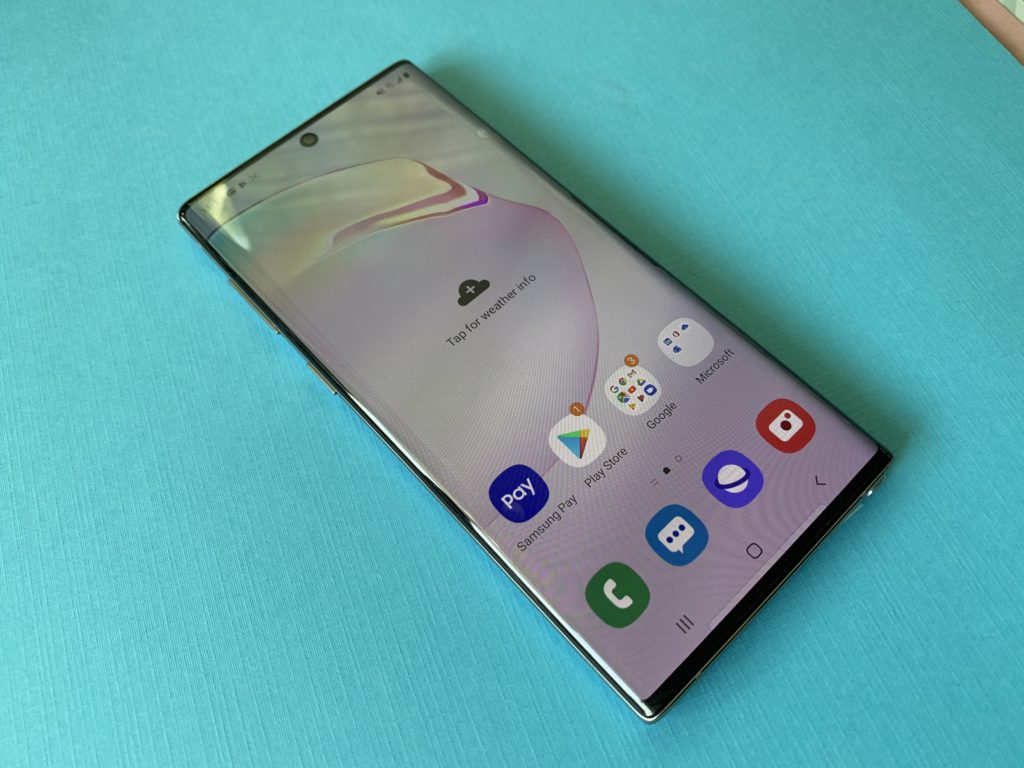
Have you just gotten the new Samsung Galaxy Note10 or Note 10+? This sleek new phone has some cool features, but especially for new users, they might not seem intuitive to unlock, so I’m here to show you how to do it. In this blog, and the accompanying video we’ll check out how how to use the new screen recording feature.
How to record your screen on Samsung Note 10
After years of folks asking for this feature, the new Note10 now offers native screen recording—no third party apps required.
The screen recording feature in the new Note 10 and Note 10+ lives in the top menu window shade, also known as Quick Settings.
To open the Quick Settings panel, swipe down from the top of the screen with two fingers. Next up, swipe left, and then tap the Screen Recorder icon. You’ll see a countdown timer begin from 3. Once the countdown timer finishes, your phone will start recording whatever’s on the screen. Rejoice!
What can I record on Samsung Note10 Screen Recorder?
It’s worth pointing out that not all screens allow recordings or screenshots, and Screen Recorder will not record phone, VOIP, or video calls. Additionally, some apps may block the Screen recorder feature due to copyright restrictions
With with this new Note10/Note10+ feature, you can record almost anything that’s displayed on your screen! You can even use the front camera to record yourself during the video, and it will record audio too. That’s very handy if you want to make an instructional video or record your reaction to watching something too.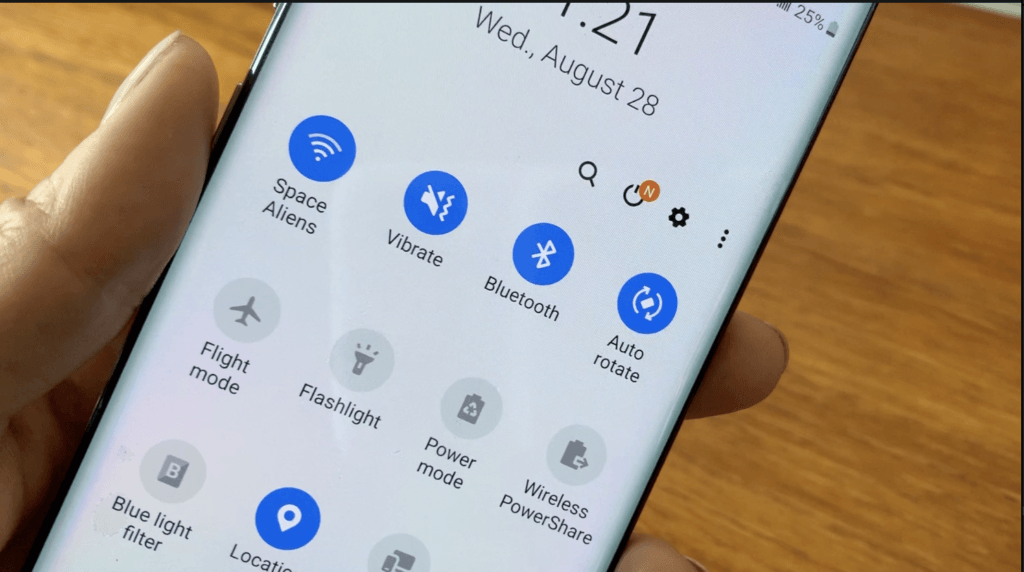
That’s how to use the new screen recording on Samsung Note10. Don’t forget to check out the short instructional YouTube video here too. And take a look around the blog. I’ve got lots more Samsung Note10 and Samsung Note 10+ tips and tricks including how to record Portrait Video or Live Video, how to turn your handwriting to text and the full Samsung Note10 review is here too.