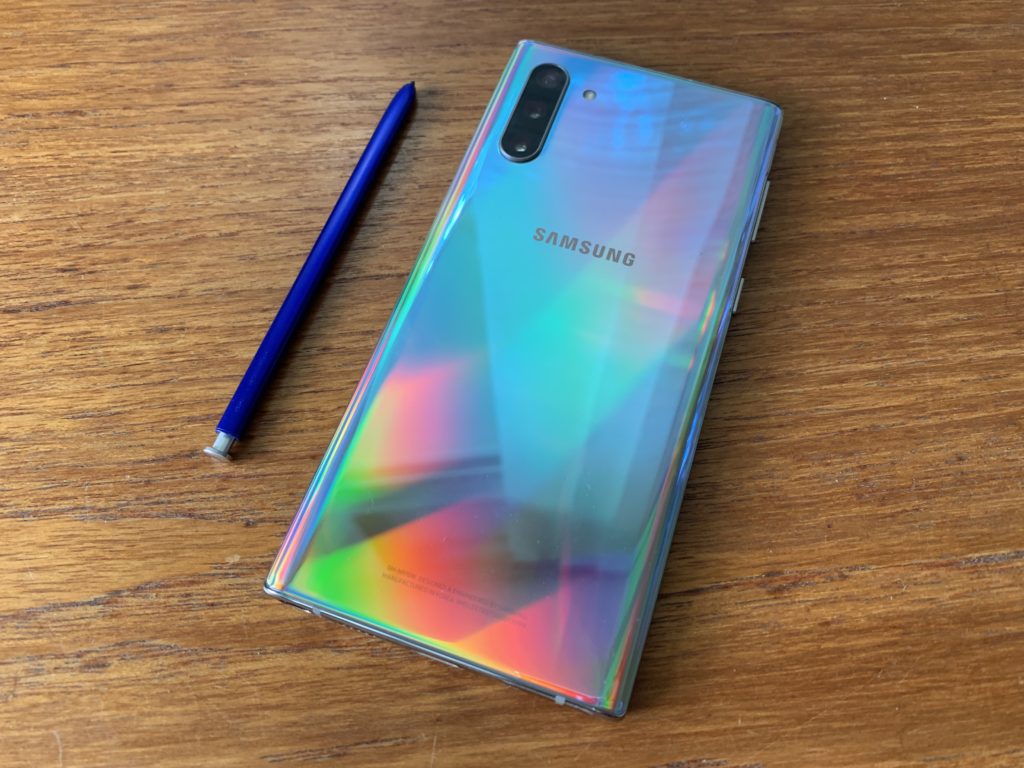
With the new Samsung Note 10 hot off the press and hanging out in my technology test kitchen I’ve been having fun experimenting with new features. This sleek new phone has some cool tools and toys, but especially for new users, they might not seem intuitive to unlock, so I’m here to show you how to do it. In this video we’ll check out how how to use the new portrait video, which is officially called Live Focus video.
What is Portrait Video or Live Focus Video?
There’s a new feature on the Note10 that lets you blur the background or add a bokeh effect to your videos now. This features has existed on other phones, yes, and has been available for still photos, but now it’s been updated for use in videos. It’s technically called Live Focus video and here’s how to use it.
How to use Portrait Video Live Focus Video on Samsung Note10
To take a Live Focus video, open the Camera app and swipe to Live Focus Video from the mini menu bar under the frame. You can adjust the blur as you like using the slider bar, shifting the look of the backdrop of the video as you shoot.
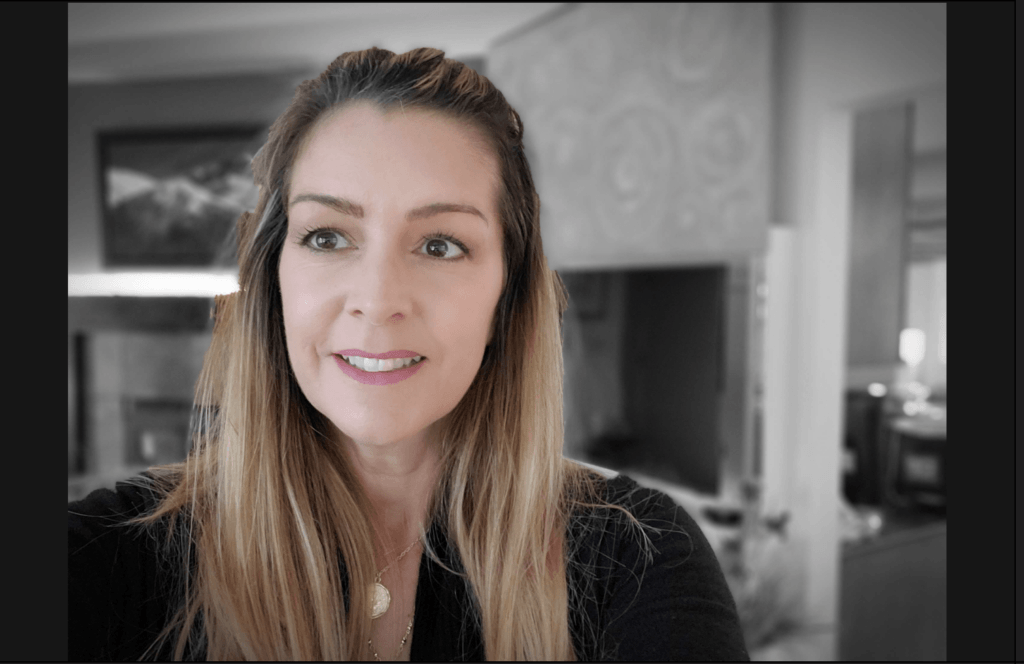 There are also filters with Live Focus or portrait video that let you put yourself in colour, and add a more monochrome black and white effect to the back (that one is dubbed Colour Point).
Once you know where to find these tools, and what they do, they’re easy to use and can add a whole new level of professionalism to your pics. The blur effect can mask things like a messy backdrop for rushed YouTubers, or it can simply bring the focus onto you and what you’re saying by downplaying what’s going on behind you.
That’s how to use the new Portrait Video or Live Focus Video. Need to know about any other Samsung Note10 features and tricks? How about How to Record Your Screen without third party apps? Or maybe you want to check out the full review of the Samsung Note10 to see if it’s a worthy upgrade? It’s all here on the blog and the YouTube channel.