If you have a traditional desktop computer, a monitor is a given, but those who work on laptops can also make the case for having a clear, colourful and sharp monitor. When it comes to choosing the best computer monitor for work from home, gaming or just daily tasks, how can you choose the right one? There are plenty of questions and considerations so in this computer monitor buying guide, we’ve rounded up the most important, as requested by our readers.
What’s Important to Consider When Buying a New Monitor?
A monitor can make or break your computing experience. You’re staring at it all day, so finding the perfect fit is crucial. Here’s what to consider:
- Size: Bigger isn’t always better, but it can make a difference in multitasking and immersion.
- Resolution: A higher resolution means crisper visuals, but it can be taxing on your system.
- Stand Adjustability/VESA adapter: Don’t overlook placement options; they can impact comfort and usability.
- Primary or supplemental: Determine if it’s your main display or an extension to your laptop setup.
Is There a Big Difference Between a 24 and 27-Inch Monitor?
Bigger isn’t always better, but the difference between a 24-inch and 27-inch monitor can be substantial. You’ll feel the extra real estate when multitasking or gaming. But remember, desk space and viewing distance also matter.
What is the Difference Between a Screen and a Monitor?
While some people use these terms interchangeably, a screen refers to the display panel itself, whereas a monitor is the entire unit, including the screen, casing, and electronics.
Is 4K Better Than HD Monitor?
4K monitors offer a resolution of 3840 x 2160 pixels, which is four times the pixel density of a 1080p HD monitor. This results in sharper, more detailed visuals. However, you’ll need a beefier system to handle the extra workload. 4K monitors can be more expensive too, so that’s worth considering. But if you work in a visual industry or stare at text or spreadsheets all day, it makes sense to invest in a better quality monitor.
Is There a Noticeable Difference Between 1080p and 4K Monitor?
Yes, the difference can be striking, especially on larger monitors or when sitting close to the screen. However, it also depends on the quality of the content you’re viewing and your system’s capabilities.
What are Typical Monitor Sizes and Which is Best?
Common sizes include 22, 24, 27, and 32 inches. The best size depends on your needs, desk space, and viewing distance. Larger screens offer more workspace, while smaller screens can be easier on your wallet and system resources.
Monitor Ergonomics: How Do You Place a Computer Monitor?
Proper monitor placement is essential for avoiding strain and discomfort. Keep these tips in mind:
- Position the monitor at arm’s length.
- Align the top of the screen with your eye level.
- Tilt the screen slightly upward to reduce neck strain.
- Consider using a monitor arm or stand for added flexibility.
 Are Expensive Monitors Worth It?
Costlier monitors often boast better build quality, colour accuracy, and features. However, it’s essential to weigh the benefits against your budget and specific needs. Sometimes, a mid-range option can offer a great balance of price and performance.
What Do I Need to Know About Refresh Rate?
A monitor’s refresh rate, measured in hertz (Hz), indicates how many times per second the screen updates. Higher refresh rates provide smoother motion, which can be critical in gaming. Look for 60Hz or higher, with 144Hz being ideal for fast-paced games.
Do I Need Speakers in a Monitor?
24 and 27 inch monitor Built-in speakers can be convenient for casual use or when desk space is limited. However, they often lack the audio quality of dedicated speakers or headphones. If you’re an audiophile or a serious gamer, you’ll likely prefer the immersive sound of external speakers or a good pair of headphones. But if convenience is king, built-in speakers might be just the ticket.
Best monitors for working from home
We have reviewed dozens of monitors over the years, try and each of them in the home office and working on them day in and day out. We’ve developed a keen sense of what works really well in a monitor, and which ones are worth the splurge, plus the ones you can get for a great deal. Take a look at our definitive list below and know that you can read the full reviews of each one by clicking the links.
Shop PLE Computers: Sign up via email and receive latest specials, offers and ways to win cool stuff only at PLE Computers!
 Samsung UJ59 4K monitor
The Samsung UJ59, a 32-inch 4K UHD monitor, offers an affordable solution for those seeking extra screen space for gaming, work, or creative tasks. With features like a flicker-free 60Hz refresh rate, high contrast, and 10-bit colour support, this monitor provides great value. Read the Samsung UJ59 full review.
Pros:
- Samsung UJ59 4K monitor is cost effective.
- Impressive display features for various tasks.
- Low input lag for smooth performance.
Cons:
- 270-nit peak brightness might not be sufficient for some users.
- Curved panel option is not ideal for work-from-home setups.
- No mention of warranty or customer support.
HP 27m 27-inch HD monitor
 The HP 27m 27-inch HD monitor offers crisp visuals, wide viewing angles, and slim bezels, making it a great choice for everyday use. However, it falls short with a limited colour gamut, lack of ergonomic adjustments, and no built-in speakers. Overall, HP 27-inch monitor is a budget-friendly option for users seeking a reliable display that checks all the basic boxes but may not satisfy professional or gaming needs. The full review of this HP monitor is here.
Pros:
- Crisp visuals
- Wide viewing angles
- Slim bezels
Cons:
- Limited colour gamut
- No ergonomic adjustments
- No built-in speakers
Huawei MateView 4K monitor
 The Huawei MateView 4K monitor boasts exceptional resolution, a stunning design, and a plethora of features. Its crisp display, vibrant colours, and sleek aesthetics make it an excellent choice for home offices. However, the lack of a VESA mount adapter, slightly tinny built-in speakers, and the absence of swivel adjustment may be concerning for some users. It’s worth reading the full review of the MateView since I think it’s better than Apple’s Studio display. Worth noting, availability in the USA appears more limited, but it’s available in Canada at Best Buy and Amazon.
Pros:
- Impressive 4K resolution
- Sleek, minimalistic design
- Variety of ports & touchpad controls
Cons:
- No VESA mount adapter
- Tinny built-in speakers
- No swivel adjustment
Sceptre 1080p computer monitor
 The Sceptre 1080p 24-inch monitor is an affordable option for those on a budget, offering decent quality and basic features. However, it lacks design appeal and may not provide sharp enough resolution for some uses. Even so I was really impressed by this monitor during my review. And I’ve heard from thousands of shoppers that they think this is a killer monitor.
Pros:
- Affordable and decent quality HD monitor
- Good colour replication and contrast ratio
- Easy to set up, thin, and lightweight with small bezels
Cons:
- Uninspiring design
- Basic 1080p resolution may not be suitable for certain tasks
- No height adjustment and limited viewing angles
2022 Samsung M8 4K monitor
 The Samsung M8 4K monitor offers a design-focused look, doubling as a TV, making it ideal for small spaces. It features a 32-inch screen, sharp image quality, and compatibility with Apple devices. However, it has minimal adjustability, lacks a VESA mount adapter, and switching between TV and computer mode can be clunky. Read more about this monitor’s unique features here.
Pros:
- Stylish design and cool colour options.
- Impressive 4K screen quality, works as both TV and computer monitor.
- Compatible with Apple devices, includes a clip-on webcam.
Cons:
- Limited adjustability and no VESA mount adapter.
- Clunky transition between TV and computer modes.
- Difficult access to ports and connections, screen mirroring on Mac is laggy.
32″ Curved Samsung HD Odyssey G5 Gaming Monitor
 Samsung unveils the 32″ Curved HD Odyssey G5 Gaming Monitor, offering an immersive visual experience tailored for gaming enthusiasts and home office users alike. With easy setup, 2560 x 1440 resolution, and a 144Hz refresh rate, this monitor delivers sharp, seamless action. However, the curved design may distort straight lines in documents, and the VESA adapter’s placement could be better. If you’re consideringsamsung 32 odyssey g5 gaming monitor to work from home, read my full review first, since this is not an ideal configuration.
Pros:
- Immersive curved design.
- High resolution and refresh rate for clear visuals.
- Easy setup and compatibility with various devices.
Cons:
- Curved design may distort straight lines in documents.
- Limited movement and adjustments with included stand.
- Poorly placed VESA adapter for monitor arm or wall mount.
Samsung 32-inch 4K UHD Monitor Review
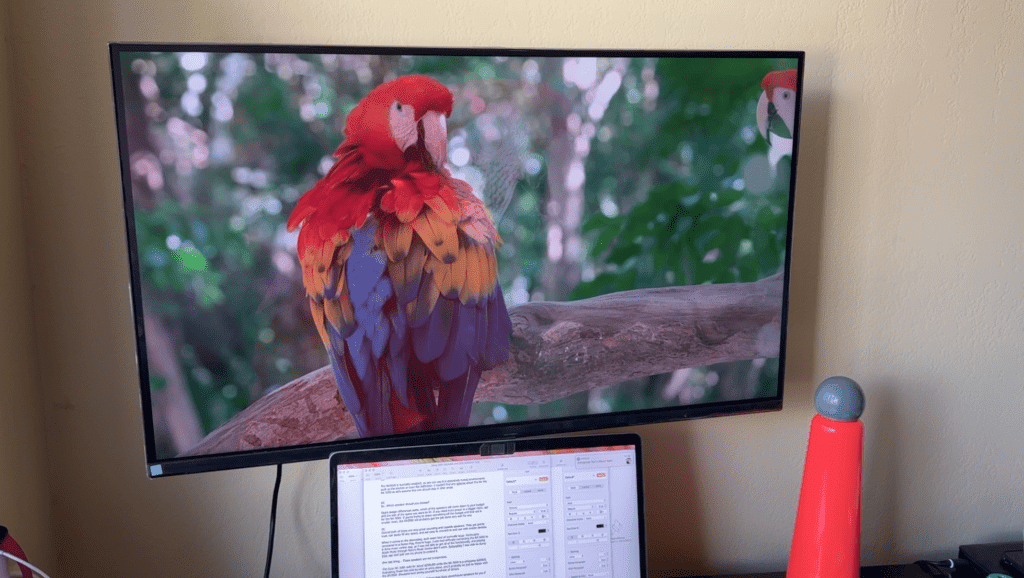 The 32-inch Samsung 4K monitor (Model LS32A700NWNXZA) offers easy setup, sharp 4K resolution, and great design for work and multimedia use. It has a single HDMI input, a DP connector, and decent cable management. However, samsung M8 4K monitor has no built-in speakers, limited stand adjustments, and the button placement is not ideal. Check out the extended details in the full review.
Pros:
- Sharp 4K resolution with HDR10 content support.
- Sleek edge-to-edge design.
- Adaptive Picture technology for optimal eye comfort.
Cons:
- No built-in speakers.
- Limited stand adjustments.
- Button placement not ideal.
ViewSonic 32-inch 4K monitor, Model VX3276-4K-MHD
 The ViewSonic 32-inch 4K monitor (Model VX3276-4K-MHD) offers excellent 4K resolution, great design, and multiple input options for a versatile workspace. However, it has poor cable management, limited stand adjustments, and confusing button placement for settings access. I’ve got more to say about this ViewSonic 32 inch 4k in the full review.
Pros:
- Bezel-less edge-to-edge design.
- Impressive 4K resolution and image quality.
- Multiple input options (HDMI, DisplayPort, Mini DisplayPort).
Cons:
- Poor cable management.
- Limited stand adjustments.
- Confusing button placement for settings access.
LG Ultrawide monitor review: 34WK650-W
 The LG 34WK650-W is a 34-inch ultrawide monitor with full HD resolution and HDR10 compatibility, catering to both gamers and professionals. Its screen offers ample workspace and accurate colours, but the built-in speaker is subpar and its stand lacks flexibility. I also had some thoughts about this screen being potentially too big for some users and spaces, so learn more in the full LG ultrawide monitor review.
Pros:
- Large 34-inch ultrawide screen for multitasking.
- HDR10 compatibility and 99% sRGB coverage for accurate colours.
- AMD FreeSync for smooth gaming experiences.
Cons:
- Low-quality built-in speaker.
- Stand has limited height and swivel adjustments.
- May be too large for small workspaces.
LG UltraFine Display Ergo Monitor
 The LG UltraFine Display Ergo is a 31.5-inch 4K monitor with an ergonomic arm that clamps to your desk, offering versatile adjustments for optimal viewing. Its sharp resolution and Nano IPS display provide a clear and vibrant visual experience. I really loved this monitor when I tested it out, and you can find out why here.
Pros:
- Ergonomic design improves posture and reduces strain.
- 4K resolution delivers sharp images and text.
- Frees up desk space by eliminating the need for a monitor stand.
Cons:
- Lacks feet or legs, limiting setup options.
- Requires specific desk types for secure clamping.
- Some users report a dim display when used with a Mac.
**A note about Affiliate Links: TechGadgetsCanada & TechGadgetsInternational is supported by our readers. Occasionally I will include affiliate links in my reviews. I do this partly for convenience of the reader (since I’ll almost always include a link to the company website or similar anyway) in case you want to read more or purchase, but I also may get a small commission from the click, which helps me keep the blog running. If you choose to use this link I thank you greatly for supporting the blog. There’s no obligation or cost to you for using these links. As an Amazon Associate I earn from qualifying purchases.