

We may not have self driving cars yet, but there are other ways to improve and streamline the driving experience. I recently received a sample of Hudway Glass. This compact plexiglass panel allows you to turn your smartphone into a heads-up display for your car.
 How Hudway Glass works
You’ll receive a folding clamshell plexiglass panel with base when your Hudway package arrives. The glass sheet folds up for storage or it can be angled to allow you to catch the reflection of your smartphone screen in the glass. The base is affixed to your car’s dashboard (you have 2 options for that) and features a rubberized non-skid base that should allow most cell phones to lay securely on the dash without skidding around. Hudway says the glass allows you to reflect your smartphone’s screen and make it about 20% larger.
The package also comes with coupons for a couple of apps that include heads-up display (HUD) technology so you can navigate, or get speedometer info. It’s very important to note you will need specialized apps to use this glass, because the app needs to be able to display in HUD/heads-up display or ‘upsidedown mode’ so that the image displays right side up when reflected onto your Hudway Glass. (Clear as mud?)
In theory, here’s how it works:
1. Turn off your smartphone’s screen lock
2. Load your preferred navigation app (Heads up display compatible)
3. Place phone on Hudway Glass base
4. Adjust screen angle
5. Hit go/start
Apps that work with Heads-up display
Because smartphone navigation apps by and large don’t offer a heads up display or reverse/upsidedown mode, many will not work with Hudway Glass. Google Maps and Waze, for example don’t offer HUD mode (as of the writing of this article), so they won’t work with this device. If those are your preferred navigation apps, I’d say don’t bother getting Hudway Glass, or wait until they do add a HUD mode.
Hudway recommends its own Hudway or Hudwidgets App, and others called Navmii and Sygic. I found the Hudway apps to be quite buggy. While I’d used a code to download Pro mode, I got constant banner ads asking me to “Unlock full version go Pro mode”.

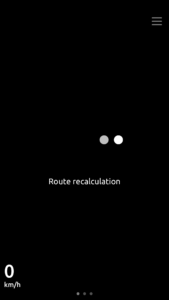 While attempting navigation, I’d say about 80% of the time, I’d also get a warning message after inputting my destination that read, “Enter the route to start” and the app just wouldn’t move to map or navigation mode. I wondered if this is an issue with the Hudway map app not working well in Canada? Or perhaps it’s my phone?
A couple times I did have success getting the app to connect and begin route navigation, but in a couple cases it would disconnect again almost immediately. In another case, it gave me a three hour trip duration to travel 10 kilometers. I checked other apps and they showed a 10 minute drive time, and no traffic accidents. Frustrating.
Either way I was never able to get the Hudway App to function enough to use it for a full drive.
With the Navmii Canada App, I had better luck getting the actual navigation to work, but finding the app setting to switch it to HUD mode was frustrating. That’s because that mode is not located in any menu. Bizarrely, you need to tap the speedometer, then click HUD mode. And you’ll need to pay $7 for that display privilege.
I also tried to test the Hudway Trip App, but when I’d attempt to load a destination it would ask me to login via Facebook, Twitter or email, or give me the option to “skip”. When I’d choose “skip” it would kick me back to the main screen where it would put me in a loop of trying to navigate, then trying to skip and on and on.
I finally acquiesced and logged in via Facebook and did get to the navigation part, where I got the constant error message “route recalculation”. Ugghhh. Closing and reopening the app seemed to help but then after a few seconds I’d get yet another error message, “You’ve left the route”. I’d say out of abut 10 attempts to use this app, I got connected once, and that was the time I got booted out. I gave up.
Daytime use vs Nightime use
Obviously Hudway glass works best at night when there’s less ambient light to dull the screen’s reflection. It does work in daylight but it’s obviously dependent on conditions, which Hudway points out on its website:
 “Daytime driving: Performance depends upon time of day and brightness of the sunshine. Let me explain. In general, you can see the image clearly in HUDWAY Glass. Not unexpectedly, the level of detail that you can see at night is not present during daylight hours. Large image objects (arrows, lane markings and such) have good resolution but smaller image objects (text and numbers) may be a bit harder to discern.”
Overall review of Hudway Glass
I can’t make any complaints about the Hudway Glass itself. It works exactly as you’d expect. The non-skid base kept my phone in place even during cornering, and the glass was very reflective and made the screen quite visible. It was easy to keep clean with a soft cloth too. I obviously got the best performance from this device at night.
I was definitely frustrated that I couldn’t find a proper navigation app to give me an awesome user experience with Hudway Glass. I think I’ll put this glass away for a while and wait for Google Maps or Waze to offer a HUD mode, then pull it out and try again.
If anyone can recommend a reliable Canadian HUD driving app for Hudway I’d love to give it another try. Post your pick in comments below.
Hudway Glass sells for $49.95 USD and is available from Hudway’s website. It’s also on Amazon via this affiliate link
HUDWAY HG0317001 Other for iPhone, Samsung, Black
*A note about Affiliate Links: Occasionally I will include affiliate links in my reviews. I do this partly for convenience of the reader (since I’ll almost always include a link to the company website or similar anyway) in case you want to read more or purchase but I also may get a small commission from the click, which helps me keep the blog running. If you chose to use this link I thank you greatly for supporting the blog.



4 Comments
Hi .I found your review pretty useful .Please try the HUDWAY Glass using the 7 ways navigator app from google store and tell me what you think ..This is one of the few apps that has a good HUD mode (top right hand corner in app next to time display) ,so it should work really well.Thanks .
Thanks Vinay! I will download it today.
Sygic has pretty good HUD function.
Good to know!